Insider TA Internet Update
Insider TA can download the latest update over the Internet. Follow these steps:
- Connect to the Internet.
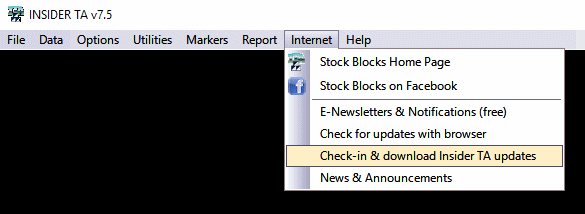
- After starting Insider TA, pulldown the "Internet" option. Then select "Check-in & download Insider TA updates".
- When the Internet Update window appears, click the "Get Updates" button.
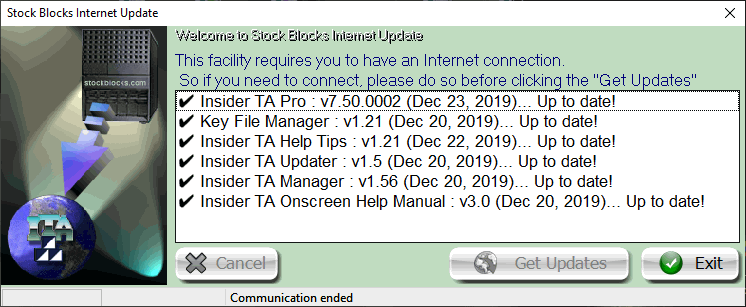
- If recent updates are found on the server that you do not have, then downloading will commence automatically. Afterwards, you will be prompted to exit the program which prompts Insider TA v7 to install the updates. A special updater process will request Admin permissions to proceed (click the Yes button). You will then need to start Insider TA up again manually (the program will not automatically restart)
Note: When downloading and installing updates, Insider TA v7 does not need to explicitly be started up as Administrator which was a requirement with the version 6.x software. Insider TA v7 handles the Windows Vista/7 permissions more gracefully than previous Insider TA versions.
|
The Insider TA software will NEVER collect any of your personal data or your usage patterns. We also NEVER install 3rd party software or access information on your hard drive. The Internet Update process happens solely to ensure that your copy of Insider TA is up-to-date. At Stock Blocks, we find spyware to be reprehensible and are committed to protecting the privacy of all of our users.
For more information, refer to our Privacy Statement.
|
|




