Return to front page Program Overview Secure Ordering Demo Download
 

INO FuturesAlert

March 11, 2010

FAQ's
Pro vs. Standard
Quickstart Tips
Reviews
Feedback
Support
Update Center
Stock Blocks Reading Corner

CSI Data

Insider TA's File Entry Panel

Loading Stock Data

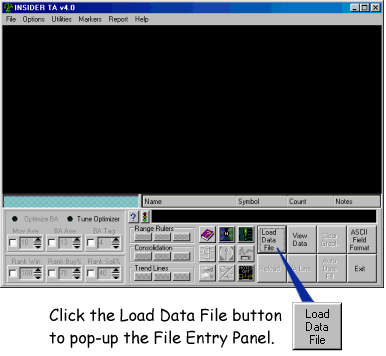
Step 1: Click the Load Data File button:
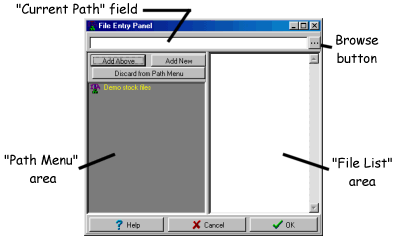
Step 2: Click a path in the Path Menu, or manually key in the desired path in the Current Path Field...


Step 3: Click the desired stock entry in the File List... 
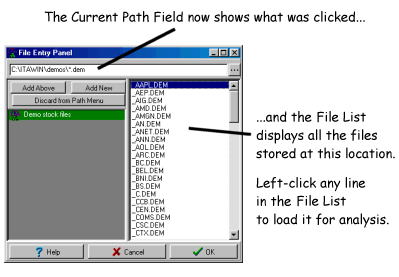
Path Menu

The Path Menu area (the gray area on the left side) is where you can store frequently accessed stock data locations. In the above pictures, there is a single entry labeled "Demo stock files". But you are encouraged to add as many additional entries as you like. Right-click anywhere in the Path Menu to popup additional options.


Home Page |  Privacy Statement |  Order |  Internet Update |  Support |  What's This? Map |  Data Compatibility |  User Feedback |  FAQ's |  Demo Download |  Quickstart Tips |  STD vs PRO comparison

Stock Blocks® Site Search


Stock Blocks Logo - Registered Trademark
P.O. Box 416, North Stonington CT 06359  USA


Copyright ©1995-2010 Stock Blocks, Inc.®
Stock Blocks is a registered trademark of Stock Blocks, Inc.