Amazon - Programming and Web Development
Configuring the BDE for Windows Vista
Note: This page applies ONLY to users of Windows 7 and Windows Vista using Insider TA v4.0 through v6.0. This page does NOT apply to you if you are using Insider TA version 6.1 or greater.
Insider TA (versions 4.0 through 6.0) by Stock Blocks® uses the Borland Database Engine (BDE) for underlying operations. Windows Vista can be very restrictive towards applications written for the previous versions of Windows. This is also the case with the BDE, which is not capable of running in Vista unless two settings have been changed:
- A permission for the BDE must be given in the windows registry database.
- A BDE attribute named "Net Dir" must be configured to an arbitrary folder other than the root drive (C:\). This configuration is done in the "BDE Administrator" program that's installed with Insider TA. (This step is automatically performed by Insider TA v6.0).
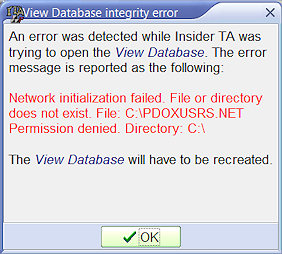
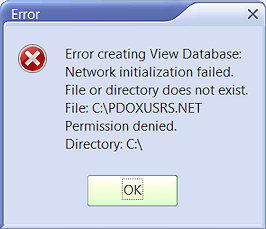
Without these two steps being performed, you'll see the following two error messages appear immedately after Insider TA is loaded:
First you'll see this...
| Then you'll see this...
 |
The following instructions are to be carried out after installing Insider TA to your Vista computer...
1. First, configure the permission for the BDE in the registry...
Make sure you are logged into your Vista machine with an administrator account. Then follow these directions:
- Go to Start | Run… Type regedit...
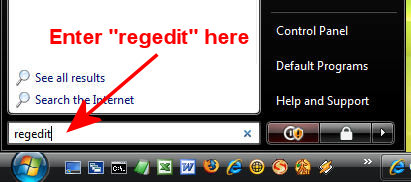
- Open the HKEY_LOCAL_MACHINE branch.
- Open the SOFTWARE branch.
- Right-Click on the entry labeled "Borland".
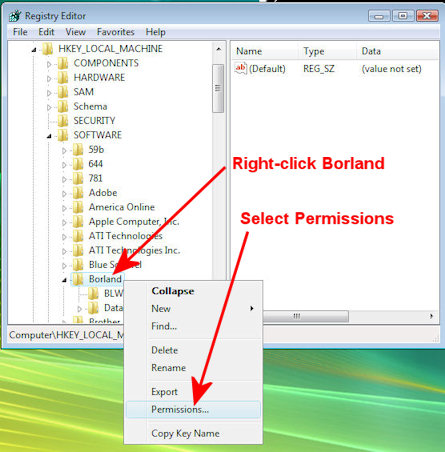
- In the menu that shows select Permissions. The following dialog will appear:
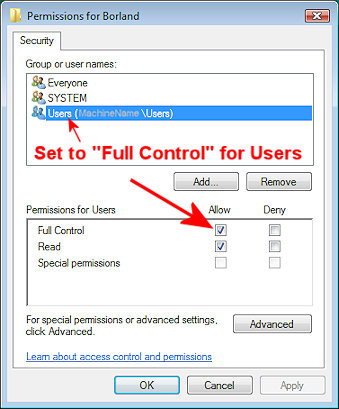
- Click "Users".
- Under "Permissions for Users ", select "Allow" for Full Control. Then click OK.
- Click OK to exit the Registry Key Permissions dialog box.
- Exit the Registry Editor window
2. Next the Borland Database Engine must be configured...
NOTE: This step is automatically performed by Insider TA version 6.0. You only need to perform the following steps if you're using Insider TA version 5.4 or earlier.
The Borland Database Engine makes use of a special file called "Pdoxusrs.net" (the purpose of which is beyond the scope of this document). The default setting for the placement of this file is in the root of drive C, which will fail under Windows Vista, as this operating system does not permit new files to be created here. However, it is permitted to designate any subfolder for the "Pdoxusrs.net" file to be placed. The name of this new folder is of minor importance and could be named anything you like. For example, here we will choose "BDEShare". (The name doesn't matter. It just needs to be any folder other than the root drive.)
So let's stick with this example. Create a subfolder off the root drive C and name it "BDEShare". So the file path for this new subfolder will be "C:\BDEShare". Remember this string value because you will need to enter it below.
Now the BDE must be configured to use the new folder. This is done in the Windows control panel, where you will find an applet named "BDE administrator". Note that you will only see this after the BDE has been installed to your system (which is done automatically during the Insider TA installation).
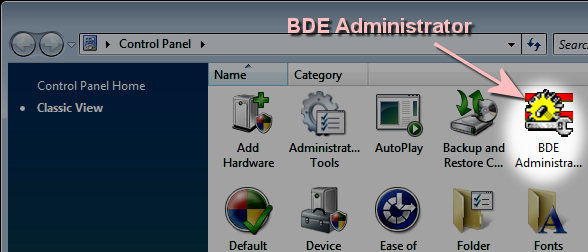
Double-click the BDE Administrator to open it. You will see the following dialog appear:
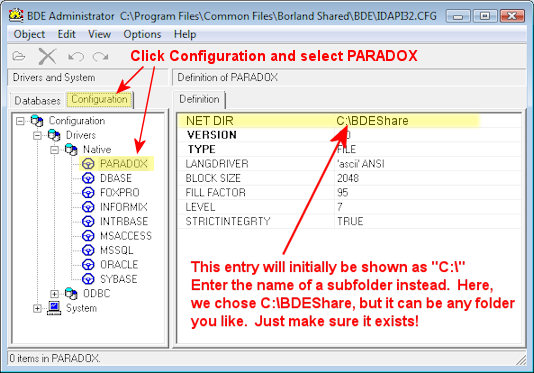
As shown in the above picture, click the tabsheet titled "Configuration". Expand the configuration as shown (Drivers - Native) to expose the entry titled "PARADOX". Single click the item named PARADOX. Now observe the data that fills on the right half of the dialog. You will need to edit the entry for "NET DIR". Initially, it will be shown as "C:\". You need to change that entry to the subfolder that you created above. In our example, this is C:\BDEShare.
If the BDE Administrator is not capable of making the change then verify that the permission in the registry has been set properly. If this isn’t the case then retry to apply the permission as described in the above.
Now start Insider TA. With the BDE now configured to work with Windows 7 or Vista, Insider TA will function properly.
|




