|
Note: The instructions below may be outdated. Contact Worden support if you have any issues or
refer to their online help pages
Insider TA Professional software reads
from your computer's TeleChart database automatically. The
following discussion is for those who still use Insider TA Standard which
can only load ASCII data. Here we show you how to convert your
TeleChart data to ASCII files.
In TeleChart's top menu bar, click Databank and then select Export to Text.
Now follow these steps:
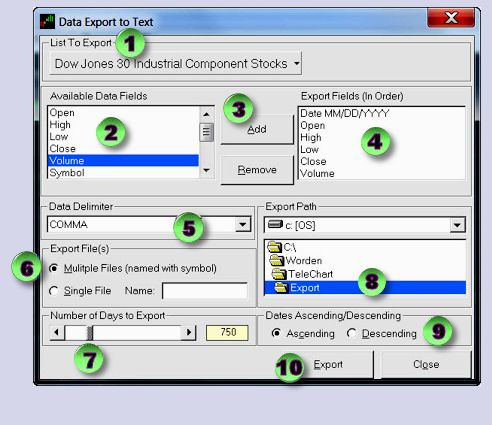
- When the Data Export to Text appears, click the "List to Export" pull down to select the
watchlist ("Dow Jones 30 Industrial Component Stocks" is
shown in the picture).
- In the "Available Data Fields" list, highlight a desired data field
- ... and then click the Add button
- ... to place the data field into the "Export Fields (In Order)" list.
Repeat steps 2, 3,
and 4 for each data field, in the order
Date, Open, High, Low, Close, and Volume.
- Set the Data Delimiter to COMMA.
- In the "Export File(s)" block, select "Multiple Files (named with symbo) ".
- Using the slide tab, select the number of days to export (anywhere
around 750 to 1000 is suitable for InsiderTA).
- In the Export Path box, identify where you want the ASCII files
to be created. Here, the default location is shown:
C:\Worden\TeleChart\Export.
Remember this directory, because you will need to enter it into Insider TA.
- In the Dates Ascending box, select "Ascending" (this is important!)
- Click the "Export" button.
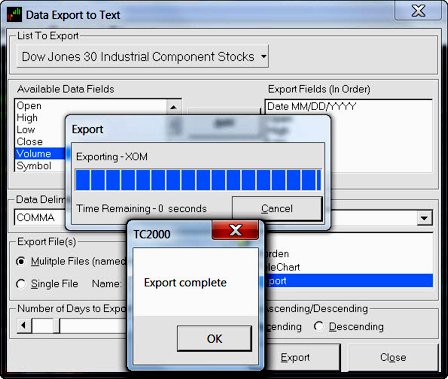
- When the "TC2000: Export complete" message pops up, you're done!
In Insider TA's File Entry Panel,
enter the path specified above:
C:\Worden\TeleChart\Export\*.txt
|



